

How to Use an iPad as a Second Screen
An iPad can be a very useful second screen, especially if you already use a MacBook and want more room for notes, messages, reference material, editing tools, or a browser window. Apple's built-in feature for this is called Sidecar, and it lets a compatible iPad extend or mirror a compatible Mac display.
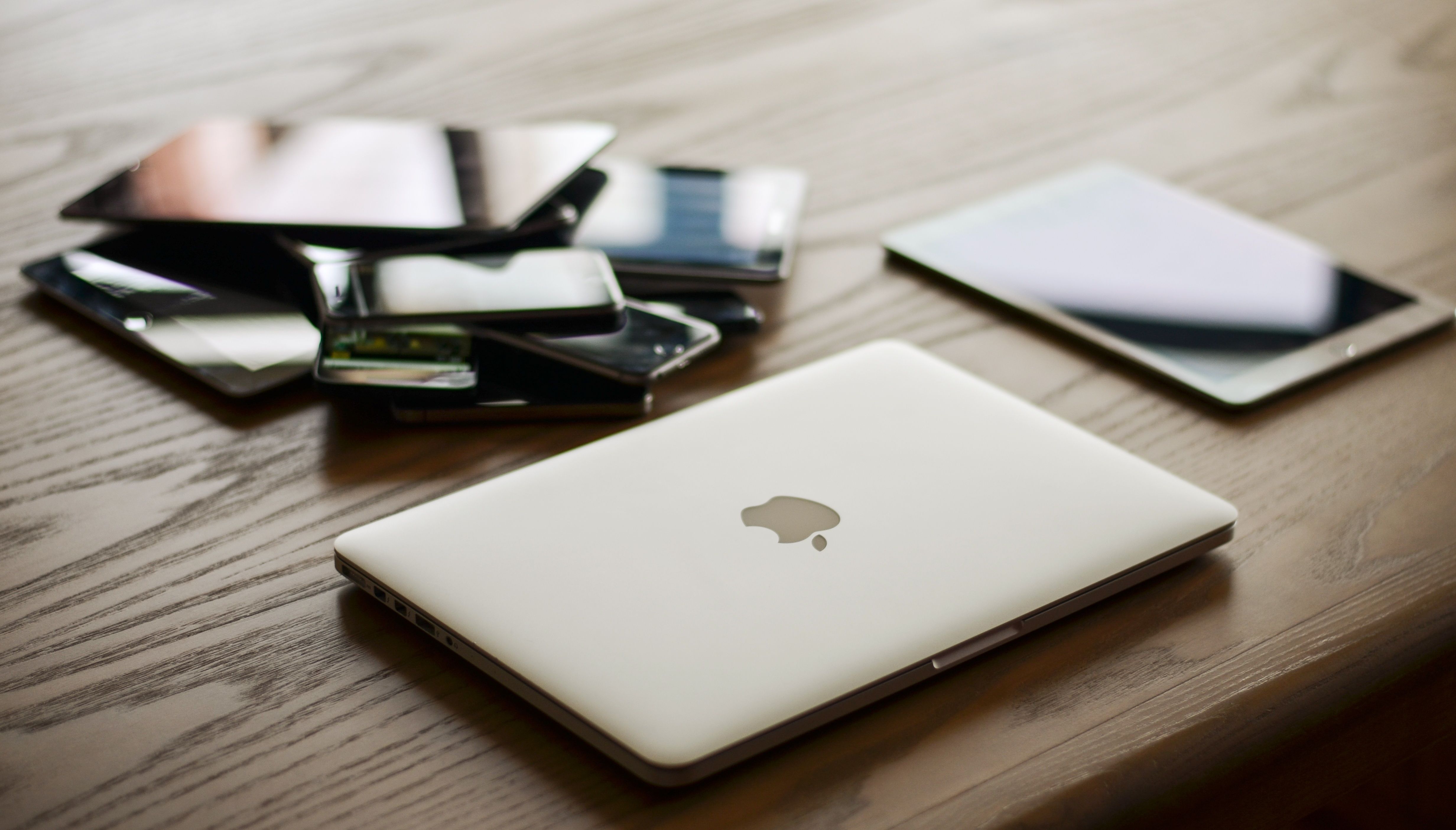
Before you plan your setup around it, the most important thing to know is that not every iPad and not every Mac supports Sidecar. Some older iPads are still great for browsing, reading, streaming, and everyday tablet use, but they may not work as a native Apple second display. That is where checking compatibility first saves a lot of frustration.
What Sidecar does
Sidecar turns your iPad into either an extended display or a mirrored display for your Mac. In extended mode, the iPad becomes extra workspace. You can keep email, Slack, notes, a calendar, or a browser on the iPad while your main work stays on the Mac. In mirrored mode, the iPad shows the same thing as your Mac screen, which can be useful for presentations or quick sharing.
Sidecar can work wirelessly, or you can connect the iPad directly to the Mac with a USB cable. A cable can be more reliable for longer sessions and helps keep the iPad charged while it is being used as a display.
Sidecar compatibility
According to Apple's current Sidecar requirements, your Mac needs macOS Catalina 10.15 or later, and your iPad needs iPadOS 13 or later. Apple lists the following Mac hardware as compatible: MacBook Air introduced in 2018 or later, iMac Retina 5K 27-inch from Late 2015, and all other Mac models introduced in 2016 or later.
On the iPad side, Apple lists iPad Pro models, iPad 6th generation or later, iPad mini 5th generation or later, and iPad Air 3rd generation or later. That means older models such as iPad Air 2 and iPad mini 4 are not listed by Apple as Sidecar-compatible, even though they can still be useful tablets for many other tasks.
Both devices also need to be signed in with the same Apple Account using two-factor authentication. For wireless use, Bluetooth, Wi-Fi, and Handoff need to be turned on, and the devices should be within about 10 metres of each other. For USB use, the iPad must trust the Mac.
How to set it up
Start by placing the iPad beside your Mac. Make sure both devices are updated, signed in to the same Apple Account, and close enough for a stable connection. If you want the most reliable experience, connect the iPad to the Mac with a USB cable before starting.
On newer versions of macOS, open System Settings, choose Displays, then look for your iPad as an available display. You can choose whether to extend your desktop or mirror your Mac screen. You can also rearrange the display positions so your pointer moves naturally from your Mac screen to the iPad.
You can also move a Mac window to the iPad by hovering over the green full-screen button on a Mac window and choosing the option to move that window to your iPad. This is handy when you only want one app on the iPad rather than manually dragging windows around.
What works well on an iPad second screen
An iPad is excellent for lightweight second-screen jobs. It is great for keeping a calendar open, watching a chat thread, reading a reference article, checking email, previewing design work, or using Apple Pencil in supported creative apps. The portability is the whole charm: you can carry the iPad and MacBook together without adding much bulk.
The iPad also works well when desk space is limited. If you are at a coffee shop, shared office, classroom, hotel desk, or kitchen table, an iPad can give you more room without needing a full monitor setup.
Where an iPad is limited
An iPad is still a tablet-sized screen. That means it is not always ideal for long spreadsheet sessions, large timelines, detailed multitasking, or full workdays where you want a monitor at eye level. The display is useful, but it may sit lower than your Mac screen unless you use a stand.
Compatibility is another limit. Sidecar is made for Mac and iPad. If you are using a Windows laptop, Apple's native Sidecar feature is not the answer. Third-party apps may help in some cases, but they can depend on software setup, network quality, subscriptions, or cable requirements.
When a portable monitor makes more sense
If you want a second screen mainly for laptop expansion, a portable monitor can be simpler. It is built to be a display first, usually works across more devices, and does not depend on Apple Sidecar compatibility. That can matter if you use Windows, switch between devices, or want a screen that behaves more like a normal monitor.
We covered this comparison more broadly in our portable monitor guide. If you want a dedicated second screen instead of using a tablet, the The Mobile Base 15.6-inch Portable Monitor is worth considering for laptop expansion, travel, business use, and flexible second-screen setups.
Should you buy an iPad just for Sidecar?
If you already want an iPad for reading, browsing, streaming, notes, drawing, or everyday tablet use, Sidecar is a great bonus. It can make the iPad more useful when paired with a Mac. If your only goal is a second display, though, check the price and compatibility carefully before buying a tablet just for that purpose.
Shoppers looking at used tablets should pay close attention to the model generation. Our iPad tablet collection can be a good place to browse available models, but Sidecar support depends on the exact iPad generation, not just whether the device is an iPad.
Final thoughts
Using an iPad as a second screen is one of the best small upgrades for Mac users who already own a compatible iPad. It is portable, convenient, and built directly into Apple's ecosystem. For the best experience, confirm your Mac and iPad models first, use the same Apple Account, and consider a USB cable if you want a more stable connection.
If compatibility is uncertain, or if you need a second screen for more than just a Mac, a portable monitor may be the more practical choice.
Sources
Compatibility and setup details referenced from Apple's Canadian support page: Use an iPad as a second display for a Mac.