

How to Choose a Replacement Charger for a Used MacBook
A used MacBook may arrive without its original charger, or with one that is difficult to identify. Replacing it is not simply a matter of buying the highest-wattage adapter on a shelf. First identify the MacBook model, then check its charging connector, Apple's recommended power adapter, and the cable that joins them. These checks also help you assess a charger included with a used computer.
Start with the exact MacBook model
Choose Apple menu > About This Mac to see the model name. “MacBook Pro” alone is too broad; the screen size and introduction year can change the recommended charger. If the computer will not start, check the model information on the original packaging or use Apple's model identification instructions. Ask a seller for the full model name before ordering a replacement charger. Keep the serial number private unless a legitimate identification or service process requires it.
Once you know the model, consult Apple's power adapter guide. It lists recommended combinations of adapter and cable by MacBook family and introduction year. The list is a better reference than a seller's generic claim that a charger works with “all MacBooks.” It can also be updated when Apple adds models or new adapter options, so check the current page before buying.
Identify the charging port
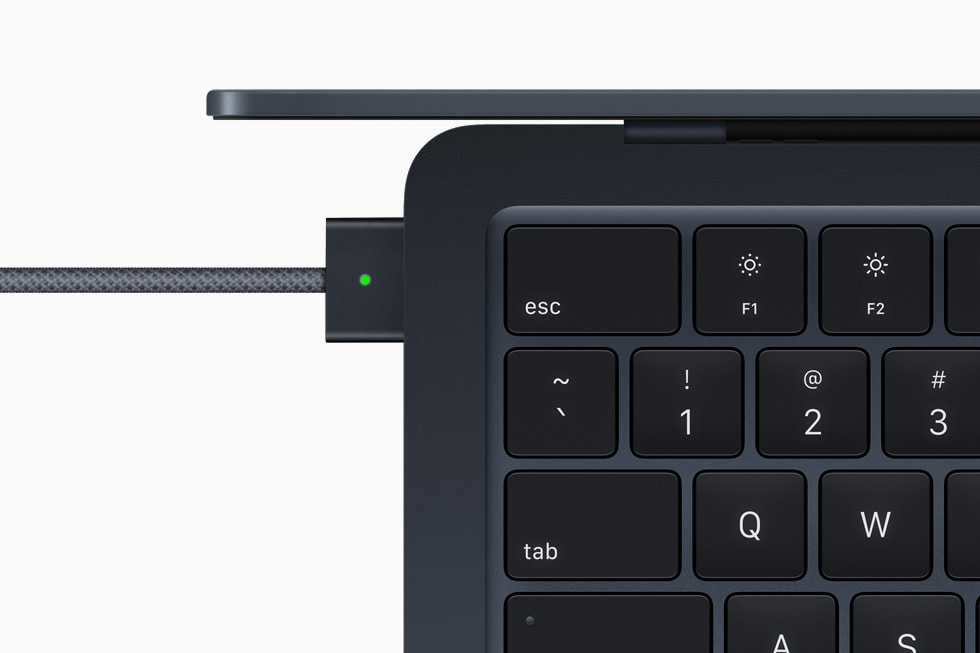
USB-C and MagSafe are not interchangeable names for a port. Many MacBook Air and MacBook Pro models introduced from 2016 onward charge through USB-C. MacBook Air models introduced in 2022 or later, and 14- and 16-inch MacBook Pro models introduced in 2021 or later, have a MagSafe 3 charging port and can also charge through supported USB-C ports. Apple lists the applicable cable options in its model-specific guide.
Older Macs may use an earlier MagSafe or MagSafe 2 connector. A USB-C to MagSafe 3 cable is not a universal replacement for those adapters. Apple notes that an older MagSafe adapter can be used with a MagSafe 2 port through its MagSafe to MagSafe 2 Converter, but that converter is not compatible with MagSafe 3. Confirm the connector against your model rather than trying to force a similar-looking plug into a port.
Match wattage to the computer and the way you use it
Wattage is the maximum power a charger can supply, not a fixed amount it pushes into the computer at all times. For USB-C charging Macs, Apple says a USB-C power adapter or display supporting USB Power Delivery can charge the computer even if its wattage is above or below Apple's recommendation. For the best charging experience, Apple recommends at least the minimum wattage listed for the Mac. A lower-wattage source may charge more slowly, particularly while the laptop is in use.
Apple's current examples include a 30W USB-C adapter for certain 13-inch MacBook Air configurations introduced in 2022 or later, a 30W adapter for MacBook Air models introduced in 2018 through 2021, 61W for many 13-inch MacBook Pro models with USB-C, 96W for the 2019 16-inch MacBook Pro, and 140W for 16-inch MacBook Pro models introduced in 2021 or later. These are not a universal shopping chart: configurations and newer models can differ. Use the exact entry for your computer on Apple's live guide.
A charger with a higher rating is not automatically faster. The Mac's charging system and the cable also set limits. If you want fast charging, check Apple's separate fast-charge compatibility guide for the supported model, adapter, and cable combination. Apple's fast-charge figures refer to specific test conditions and should not be treated as a promise for every battery or workload.
Do not overlook the cable
With a USB-C charger, the adapter and cable are separate components. A MacBook with MagSafe 3 can use a USB-C to MagSafe 3 cable with a suitable USB-C power adapter. A USB-C-chargeable Mac can use a USB-C charging cable connected to a supported charging port. If you buy the adapter alone, check that you already own the correct cable and that its power rating supports the charging arrangement you want.
Some USB-C cables are sold primarily for data, while others are designed and labelled for higher-power charging. Check the cable's stated charging capability and the manufacturer's compatibility information rather than relying on its appearance. For a multi-port charger, look at the output available to the port used by the Mac when another device is connected; the printed headline wattage may describe the charger's total output rather than the output of each port simultaneously.
Can a monitor or dock charge the MacBook?
Some USB-C monitors and docks provide USB Power Delivery, allowing a single cable to carry display or peripheral connections and charge a compatible MacBook. Check the power output specified for that particular port, then compare it with Apple's recommended wattage for your model. A monitor's USB-C connector alone does not prove that it supplies enough power. If a Mac reports “Not Charging” under a demanding workload, the connected source may be supplying power without providing enough to charge the battery at that moment.
A dock also adds another cable and power source to check when troubleshooting. Test the Mac directly with a known-good charger if charging through a display or dock is inconsistent. Our guide to Power Delivery in monitors explains what a monitor's PD rating describes.
Inspect a used or third-party charger
Look for a clearly stated wattage, appropriate connector or USB-C PD support, and an intact cable and adapter case. Apple advises that third-party adapters and displays comply with applicable safety standards and regional regulations. Avoid damaged cables, loose or bent prongs, discoloration, or a casing that has cracked or separated. Apple's adapter safety guidance says to stop using damaged parts rather than attempting to repair them yourself.
Check what is included in the listing: power brick, wall plug or extension cord, and charge cable may be separate. In Canada, make sure the wall connection is suitable for local outlets. When the charger is included with a used MacBook, ask the seller whether it is original or third-party and compare its labelled wattage with Apple's recommendation. The presence of a charger does not, by itself, confirm that it is the best match for that machine.
Verify charging after you connect it
Check that the battery menu shows the Mac connected to power and observe whether the charge level rises over time. On a Mac, hold Option while opening the Apple menu, choose System Information, then select Power. Apple's power adapter guide says the AC Charger Information section shows the wattage the computer detects from the connected adapter or display. This is useful when a charger's label is hard to read or a dock delivers less power than expected.
If charging remains unreliable, try a different outlet and inspect the cable and ports for visible damage. Stop using a charger with signs of electrical or physical damage. If the adapter is recognized but the battery behaves unexpectedly, the problem may be the battery rather than the charger. Our used MacBook battery-health guide shows where to check condition and cycle count. For a broader purchase checklist, see which refurbished laptop specifications to compare.
Replacement charger checklist
- Identify the full MacBook model and introduction year in About This Mac.
- Look up the model in Apple's current power adapter guide.
- Confirm whether it charges through USB-C, MagSafe 3, MagSafe 2, or an earlier MagSafe connector.
- Choose a suitable adapter wattage and a cable rated for the intended charging setup.
- Check fast-charge compatibility separately if that feature is important to you.
- Inspect used equipment for damage and verify the detected charger wattage after connecting it.
The safest buying approach is model first, connector second, wattage and cable third. That sequence is more dependable than choosing a charger by laptop size or plug appearance alone.